


1. Run PCamLicenseManager.exe from the folder %ProgramFiles(x86)%\PCam\NET
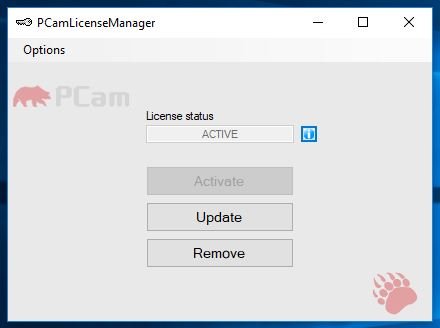
2. Click button “Remove” see picture below.
1. Run PCamLicenseManager.exe from the folder %ProgramFiles(x86)%\PCam\NET
2. Click button “Remove” see picture below.
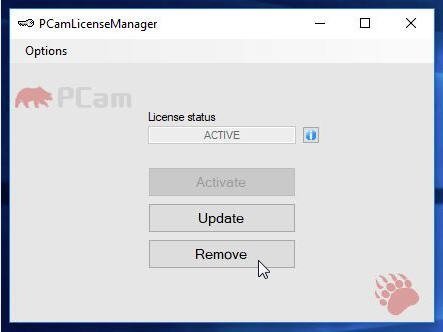
3. Confirm the removal request and wait for confirmation that the removal has taken place.
4. Click on the blue “i”, copy the Kill code (see image), for later use (more on this later).
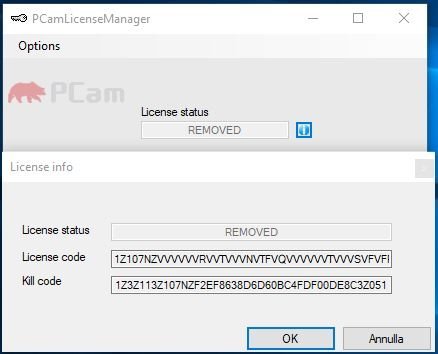
5. Start PCamLicenseManager.exe
6. The license will be “REMOVED”, click on the “Activate” button
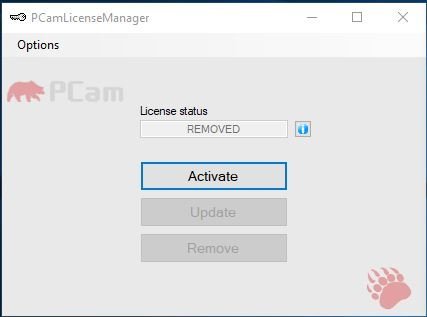
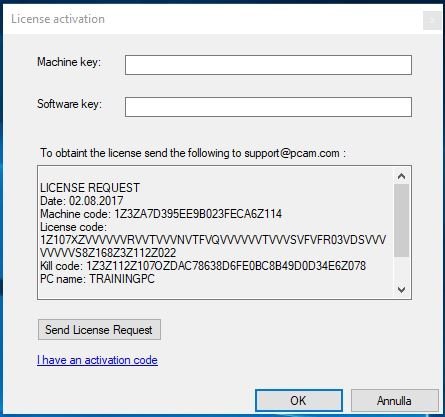
7. If you can’t find Internet access, the message “PCam license server not reachable. Check internet connection” will appear. Click No when prompted to try again and wait for the next window, which will look like the image below.
Copy the Machine code for later use (see below).
8. From any PC with Internet access, open the page www.PCam.com
9. Click on the “Support” menu item > Click on “License Renewal”
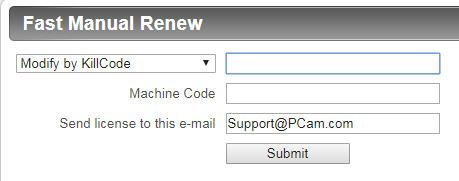
10. In the “Fast Manual Renew” window, select “Modify by KillCode.”
Enter the “Kill Code” copied in step 4 and the “Machine Code” copied in step 7.
Enter your email address, if you wish to receive an email with your license keys.
Press the “Submit” button and wait…
11. After a few seconds, the license generation result will appear in the “Fast Manual Renew” window. If successful, you’ll see two keys: the “Machine key” and the “Software key,” which you’ll copy into PCamLicenseManager, as shown in the images.
Or wait for the email to arrive at the address you entered..
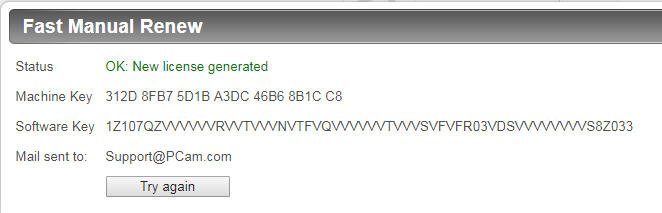
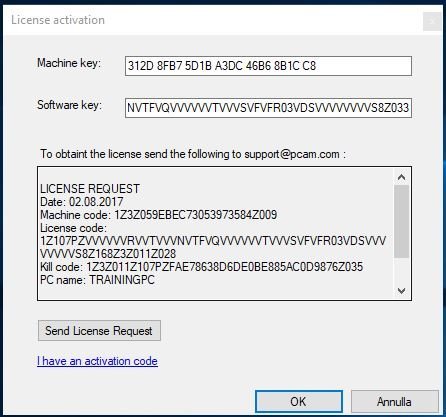
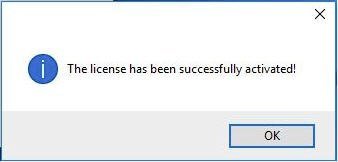
12. After entering the Machine Key and Software Key, click OK and wait for confirmation:
The license has been successfully activated!
After confirming with OK, a window will appear containing the “ACTIVE” status.






© 2026 PCam.com.
Book a Demo